I stumbled upon sunrise alarm clocks by accident.
I used to use my phone alarm, and it worked pretty well. But then I adopted a new rescue dog who gets startled by noise-based alarm clocks, even when they start super quietly. As soon as it went off, it made her jump, she would bark, and that would make me jump. Not the most relaxing start to the day for either of us!
I needed to find an alternative way to wake up in the morning.
So I tried a sunrise alarm clock.
And since getting a sunrise alarm clock, I have become a convert. I feel so much brighter, being woken up by the gentle glow of a fake sunrise, often hours before the real sun wakes up on dark winter mornings.
So my morning wake-ups were back to being gentle, even more so than before, and everyone is happy at home.
But what about when we are away?
The need for a travel sunrise alarm clock
My sunrise alarm clock is pretty bulky and not very portable. It's a glass or plastic front, and I don't really fancy its chances on the road. Plus, it would take up half my travel bag!
I had a quick search online, but I couldn't find something suitable and super cheap that I could throw in my bag for a travel sunrise alarm clock.
And I didn't want to go back to startled morning wake-ups!
I thought it would be pretty handy if I could use my phone. My phone fits in my pocket, and it's coming with me anyway. That way, I wouldn't need to remember to take any extra equipment or chargers.
My phone doesn't have a sunrise alarm clock feature, but it does have a torch! I'm a pretty big fan of iOS shortcuts, so I thought I'd explore what I could do!
iOS shortcuts sunrise alarm clock
Let's start by creating a new shortcut. I want to start with a personal automation, since I will want this shortcut to run at a certain time of day.
Shortcuts > Automation > +
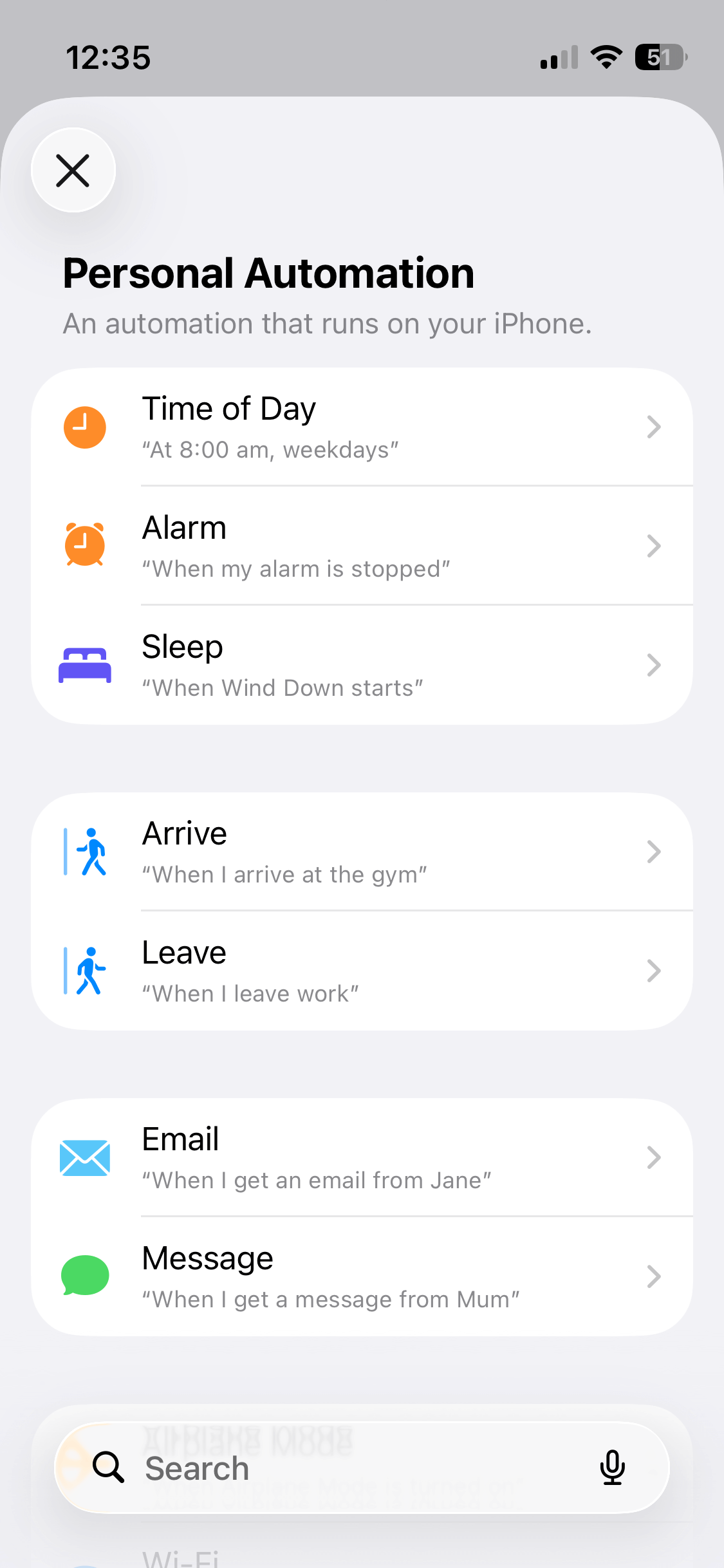
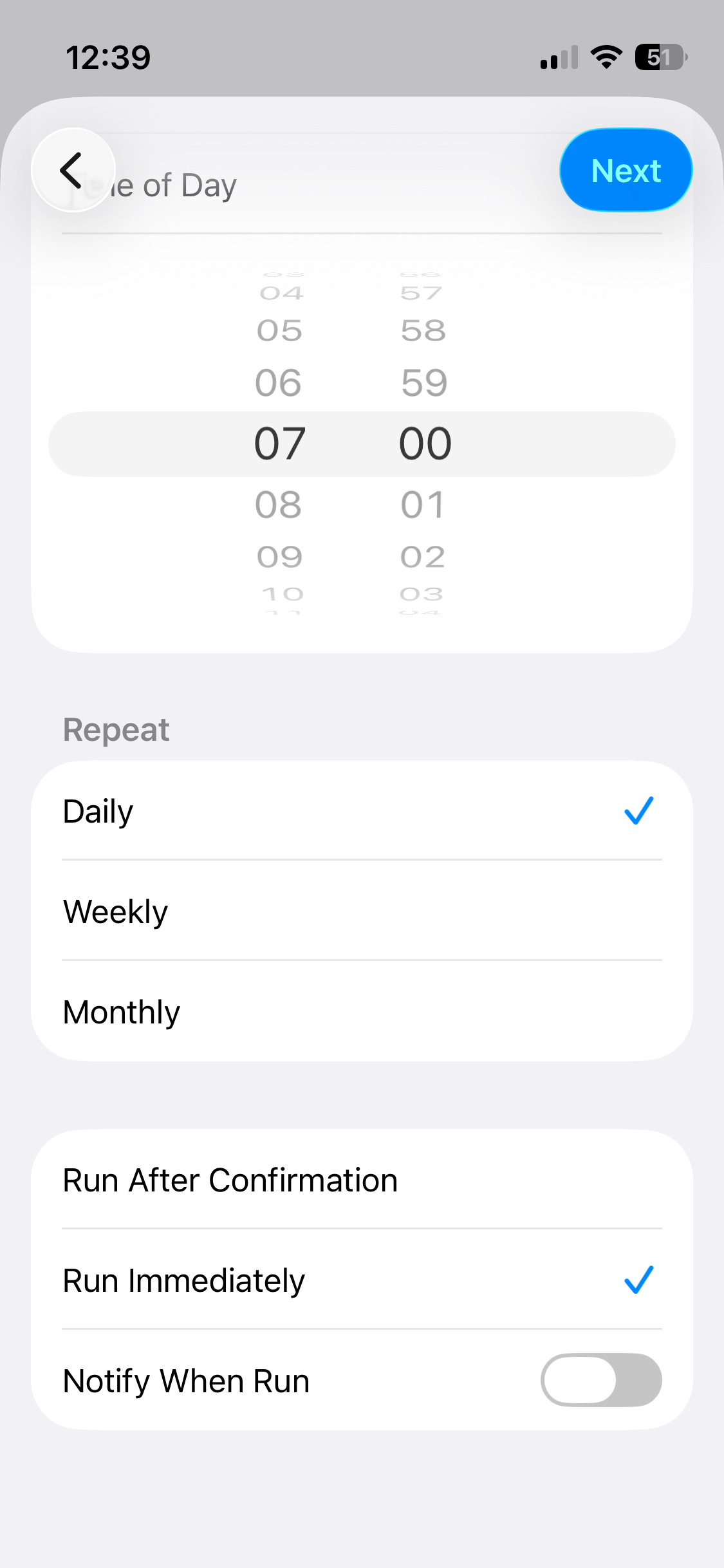
The top option, "Time of Day", is the one I want. I'll go for 7 am daily. And make sure you change "Run After Confirmation" to "Run Immediately", since we will be asleep, and turn the "Notify When Run" toggle off.
Now click "Create New Shortcut" to start building the shortcut.
Sunrise alarm clocks get gradually brighter, so I want to create a repeat loop.
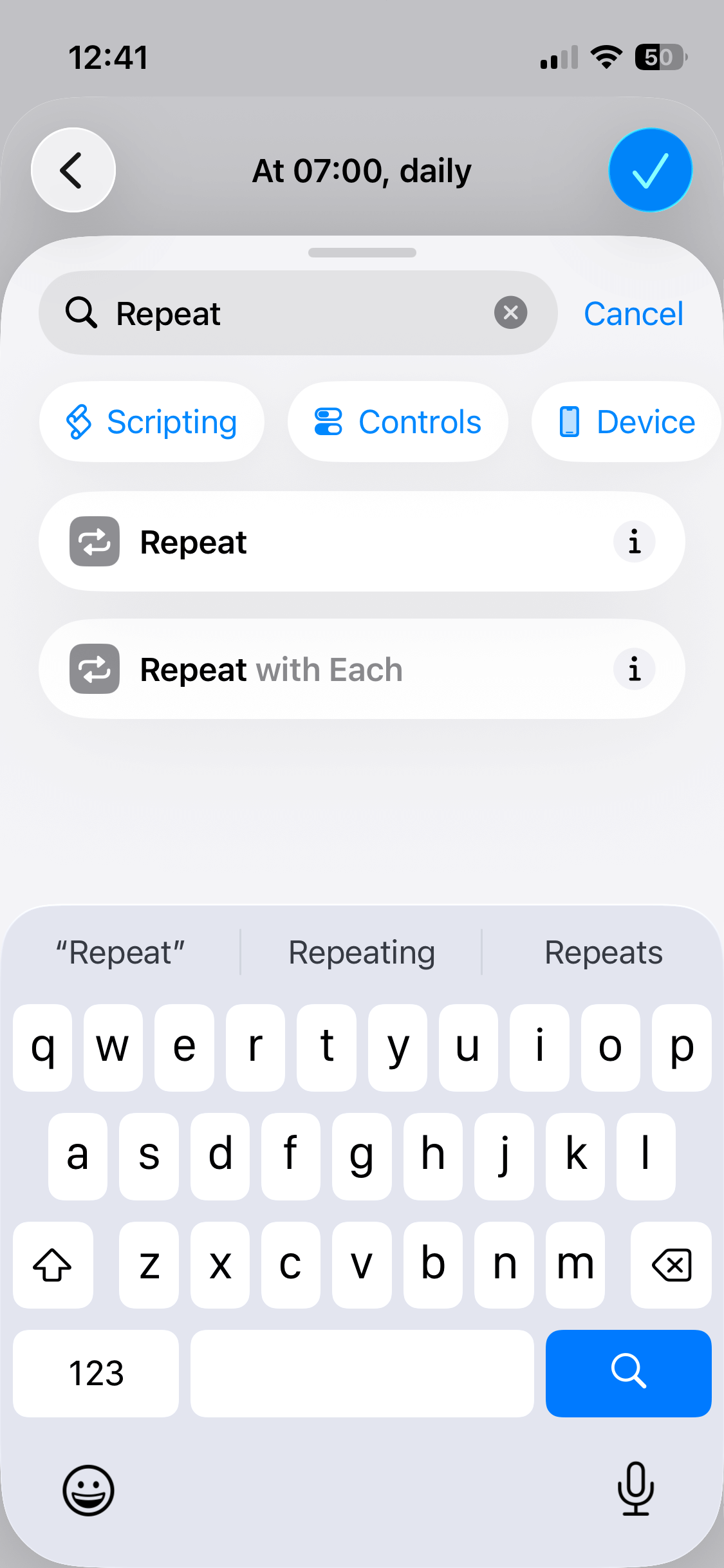
Type "repeat" under search actions, and select the repeat action.
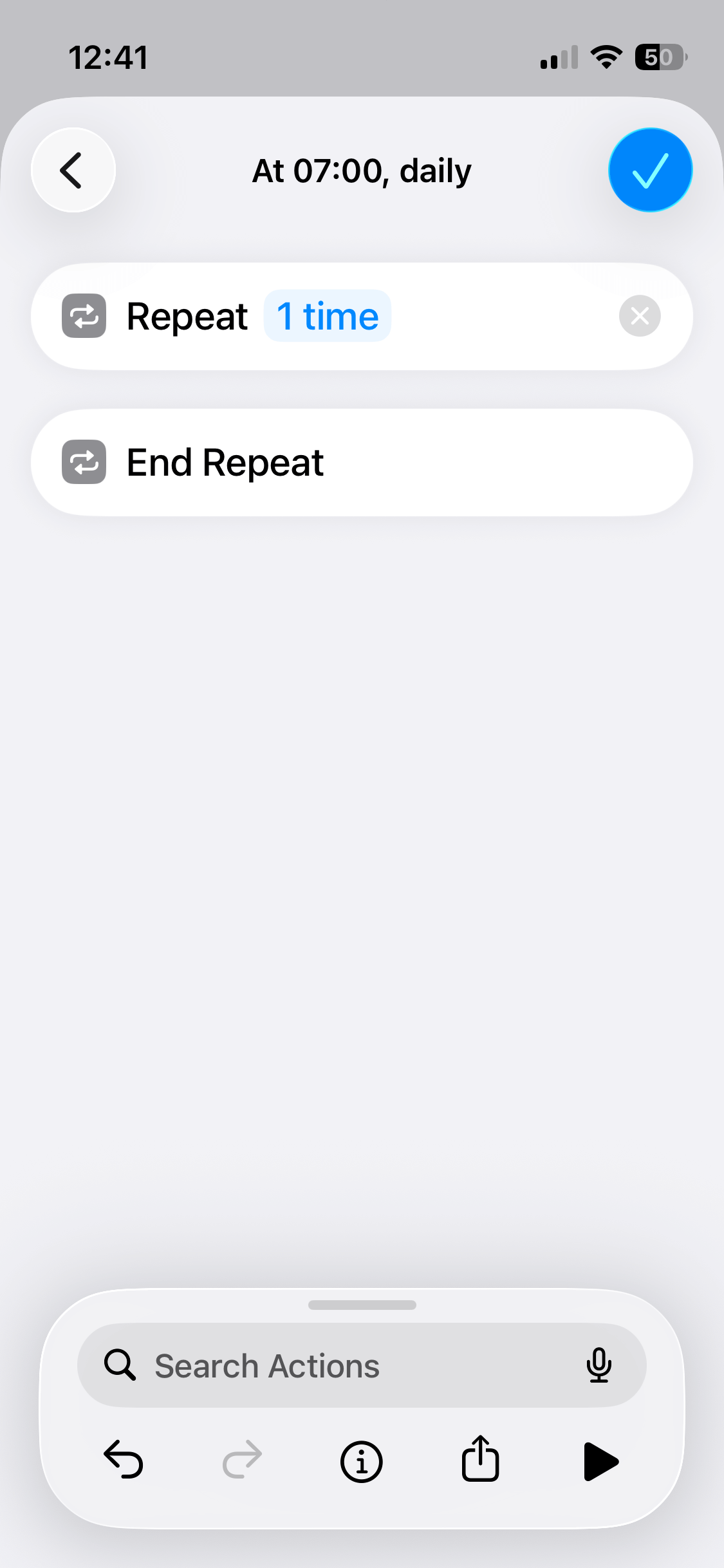
Next, I'll add the "Set Torch" action inside the repeat loop, and set the torch to "On".
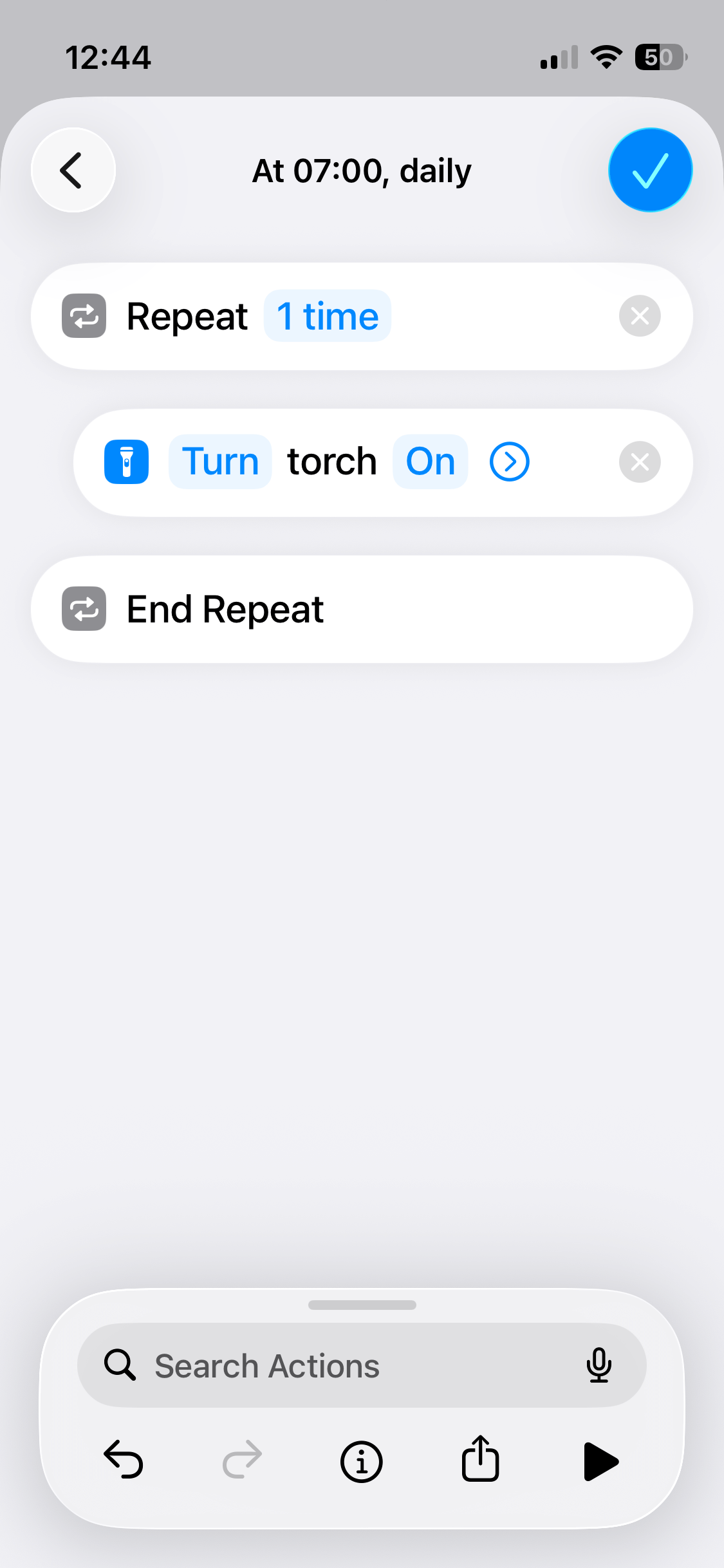
A pretty cool feature that makes this automation possible is that you can set the torch brightness by clicking the arrow icon next to "On". Like my sunrise alarm clock, I want the torch to gradually get brighter.
But I don't want to set this manually, that's why I'm using a repeat loop.
I'll add a "Calculate" action and divide the repeat index by 100, so the 1st loop is 0.01 and the second is 0.02, etc., for the torch brightness. Now we can set the brightness to the calculation result.
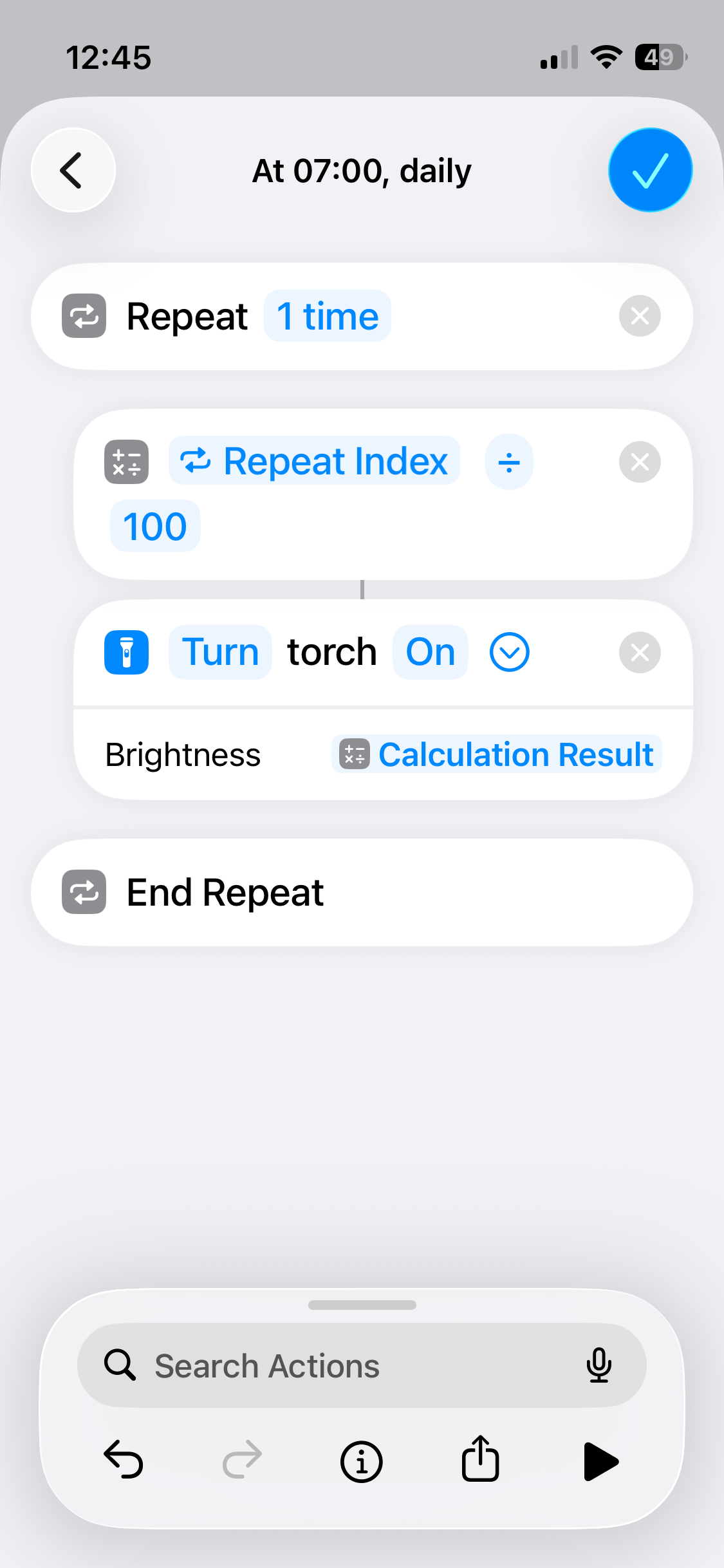
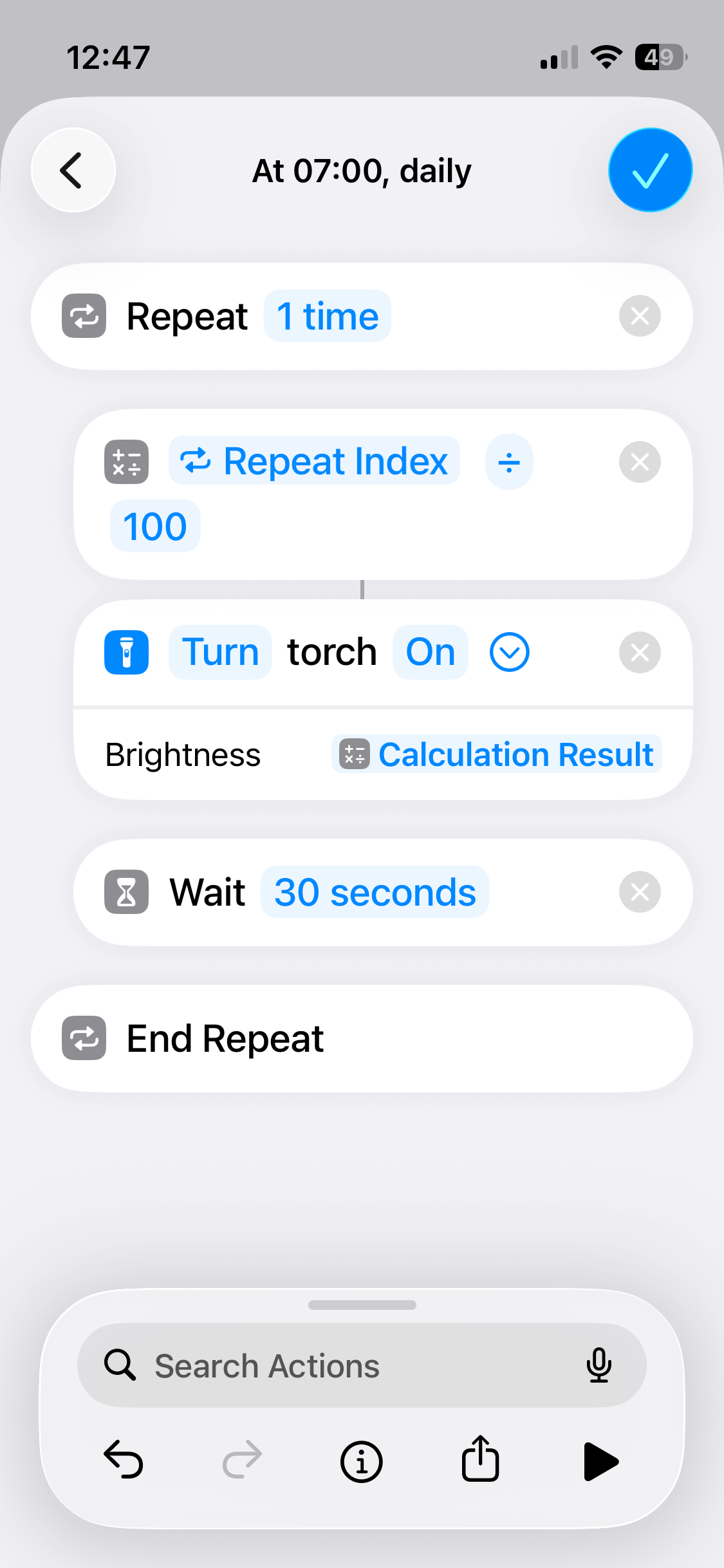
I want the light to get brighter gradually, so I am going to wait 30 seconds on each repeat before it loops round again, and repeat the loop 60 times, to give me 30 minutes of sunrise.
Ok, super.
Time for one final feature.
What if I wake up after 10 minutes? I don't want the shortcut to keep repeating and getting brighter when I am already awake.
At the start of each repeat, I am going to check if the phone is unlocked. To do this, I'll use "Get Device Details" and "Device Is Locked".
Now we can put an "If" statement inside the repeat. If the "Device is Locked" is 0, that means the device is unlocked. I'll turn off the torch and stop the shortcut in this case.
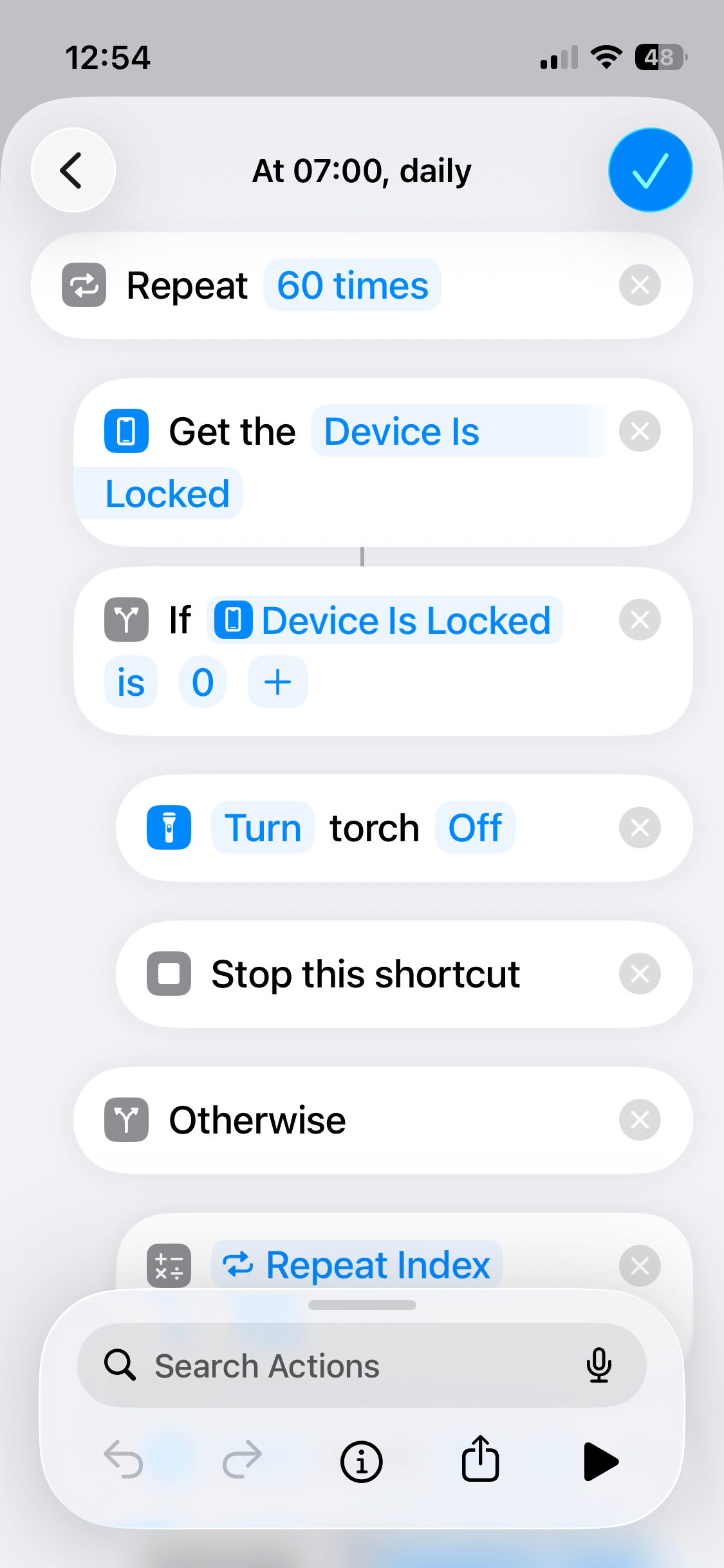
Otherwise, we will keep the loop running by putting our calculation, setting the torch, and waiting 30 seconds, in the "Otherwise" condition.
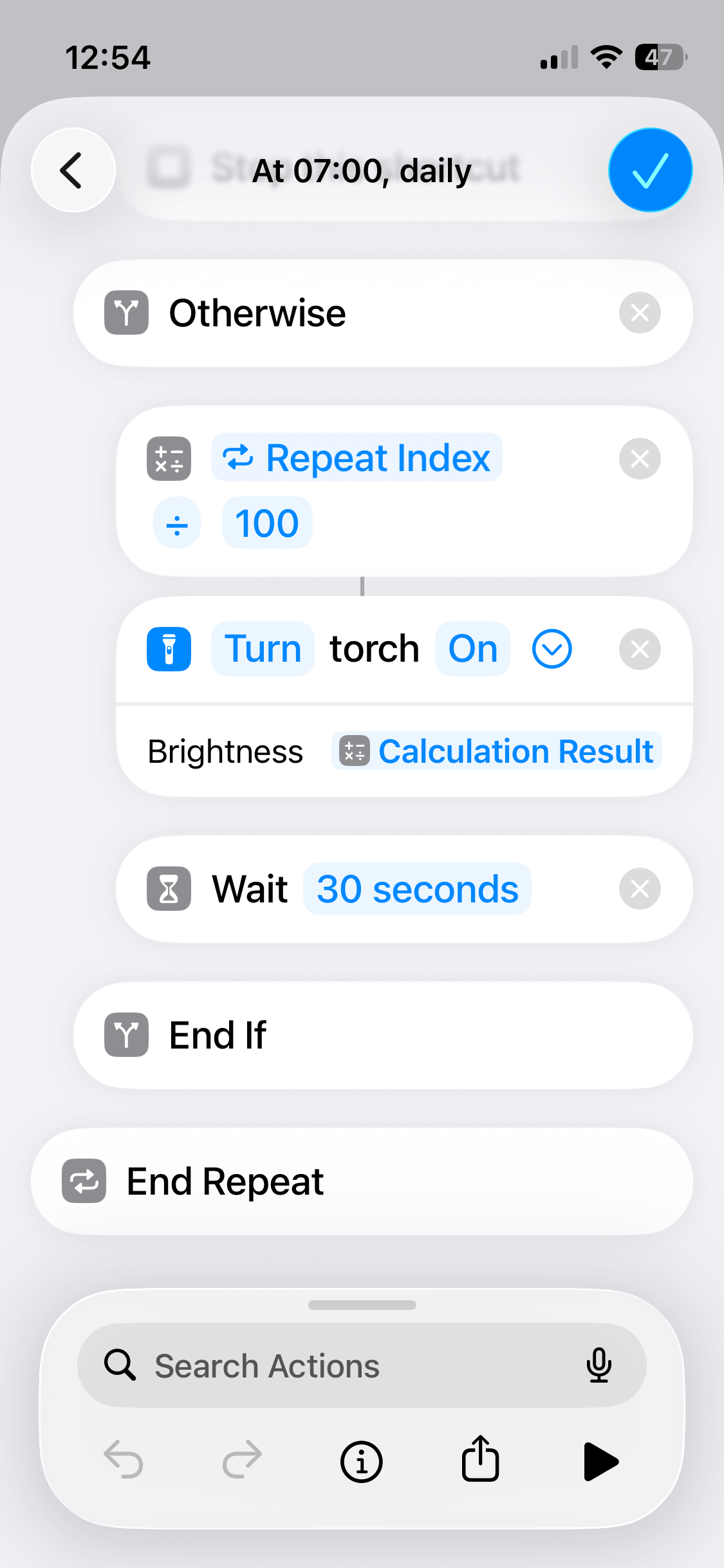
Super.
It's not quite a sunrise alarm clock, but it will do as a quick fix for when I am away from home!