When I needed a way to send a message to people when I missed a call because I knew I would be away from my phone for an extended period of time, I thought for sure this was something I would be able to do in iOS shortcuts.
It wasn't.
iOS shortcuts (at the time of writing) doesn't seem to have a missed call trigger for automatic shortcuts, or access to the call list for a manual shortcut, so either way, I couldn't do it.
Then I thought I found a way to do it using focus modes, which this guide will show you in workaround 1. But this only works for existing contacts, which didn't fit my use case. So I also came up with two other workarounds, which are not exactly automated, but do make it quick to send a "saved reply" type of message to missed calls.
- Automatic Replies in Focus Mode
- Respond with Text
- Saved Replies with Text Replacements
I can imagine this being useful for solo business operators, like plumbers, electricians, and other trades, who spend most of their days on the tools. If you are already on a job, you might not have time to answer the phone to a new potential customer, but you don't want to miss the opportunity entirely.
But when a call isn't picked up, the person phoning might not leave a message, and they might not know if you are taking on new work or if you are too busy, especially if you can't get back to them until the end of the day.
By sending a quick text message response, you can let people know:
- They have reached the right business
- You are taking on new work
- The information you need
You might want to get information on the type of work needed, their address, or even for the potential new customer to book an appointment for you to visit and measure up for a quote.
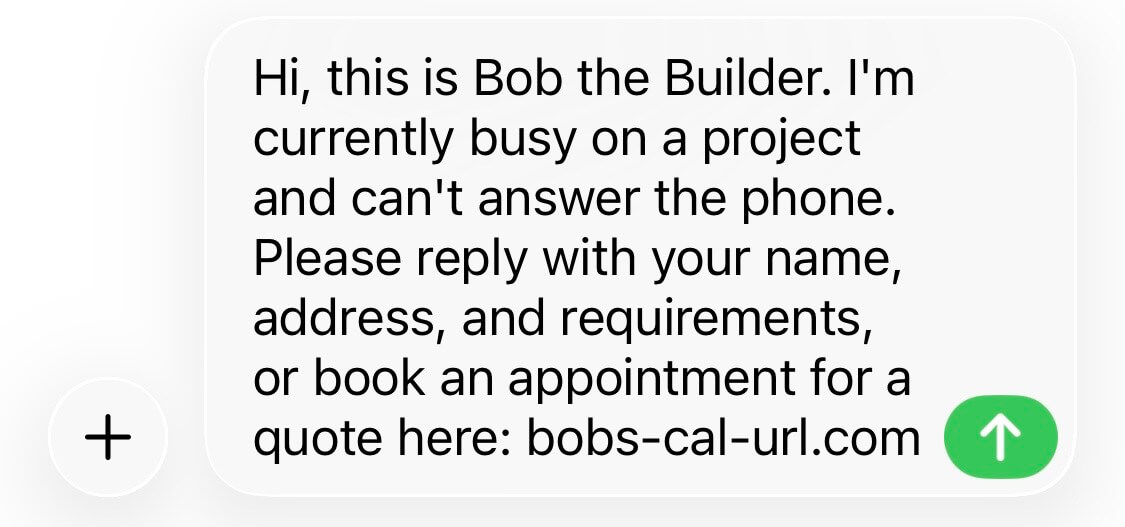
"Hi, this is Bob the Builder. I'm currently busy on a project and can't answer the phone. Please reply with your name, address, and requirements, or book an appointment for a quote here: bobs-cal-url.com
Ok, let's set this up.
Workaround 1 - Automatic Replies in Focus Mode
The benefit of this is that it can be entirely automatic. The negatives (and why I have included two other workarounds) are that it only works with contacts (so not new numbers you don't know), and driving mode can also make it hard to use your phone for other things because the phone thinks you are driving.
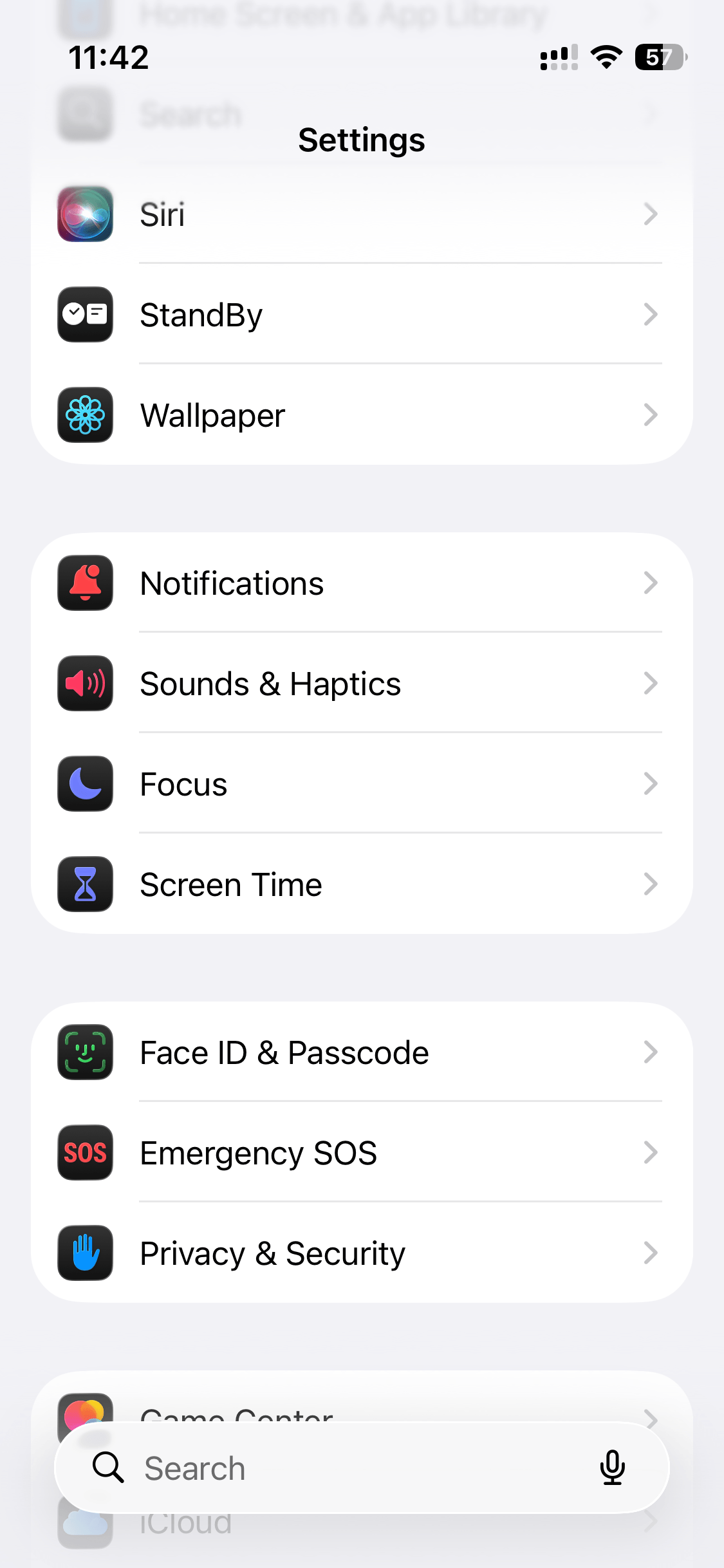
Settings > Focus
You can also access focus modes by pulling down from the top right-hand corner of the phone (where the battery level is).
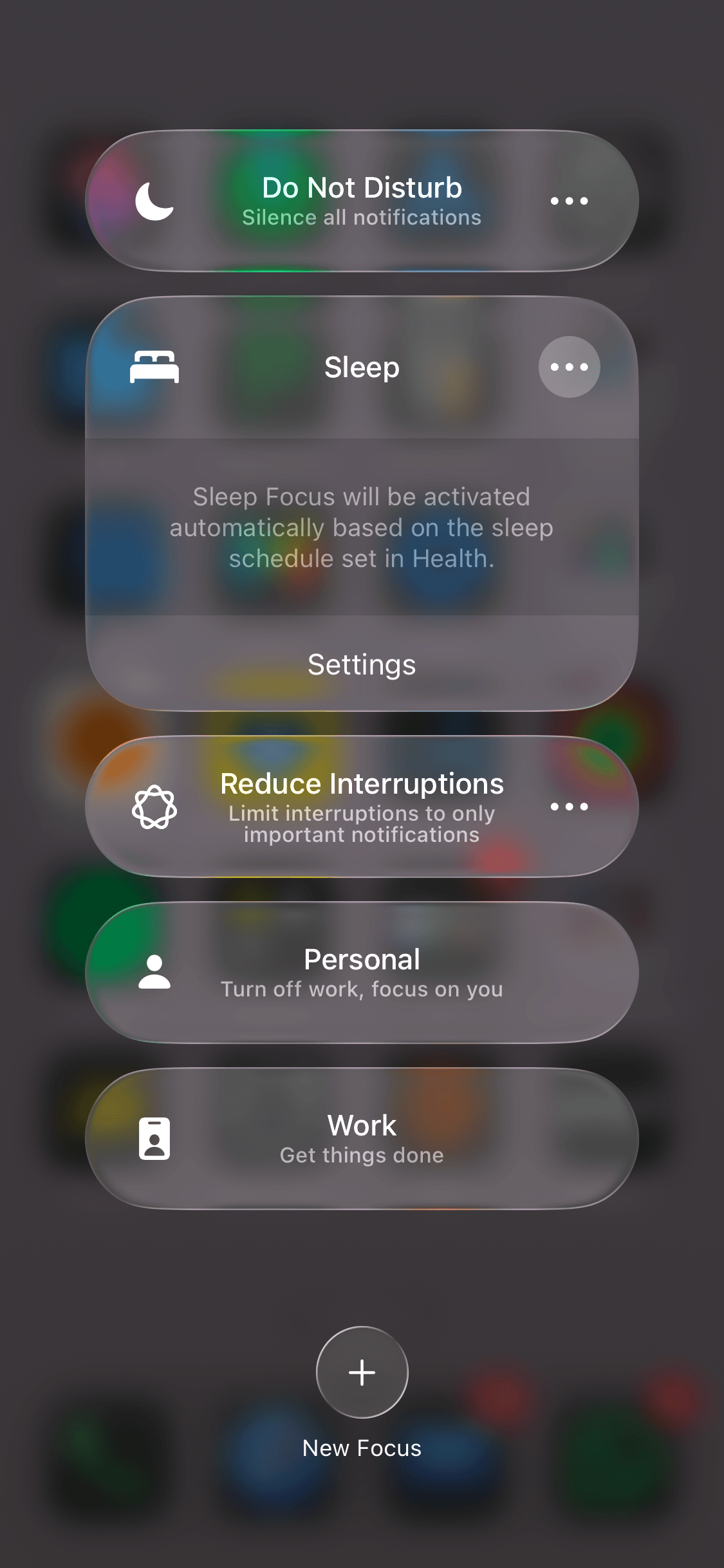
Now the only way to access the automatic reply function is in driving mode, so I'm going to create a new focus mode to use this feature.
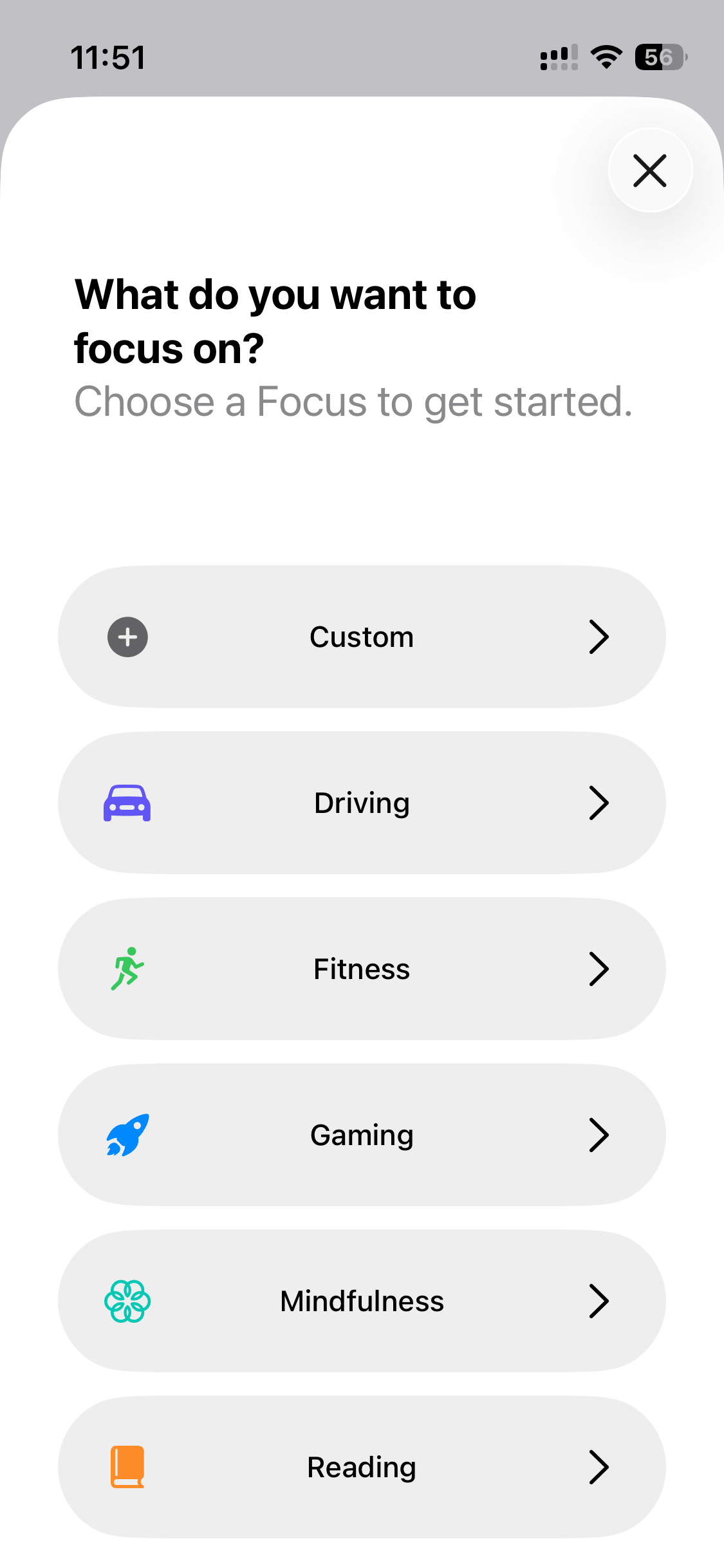
+ > Driving > Customise Focus
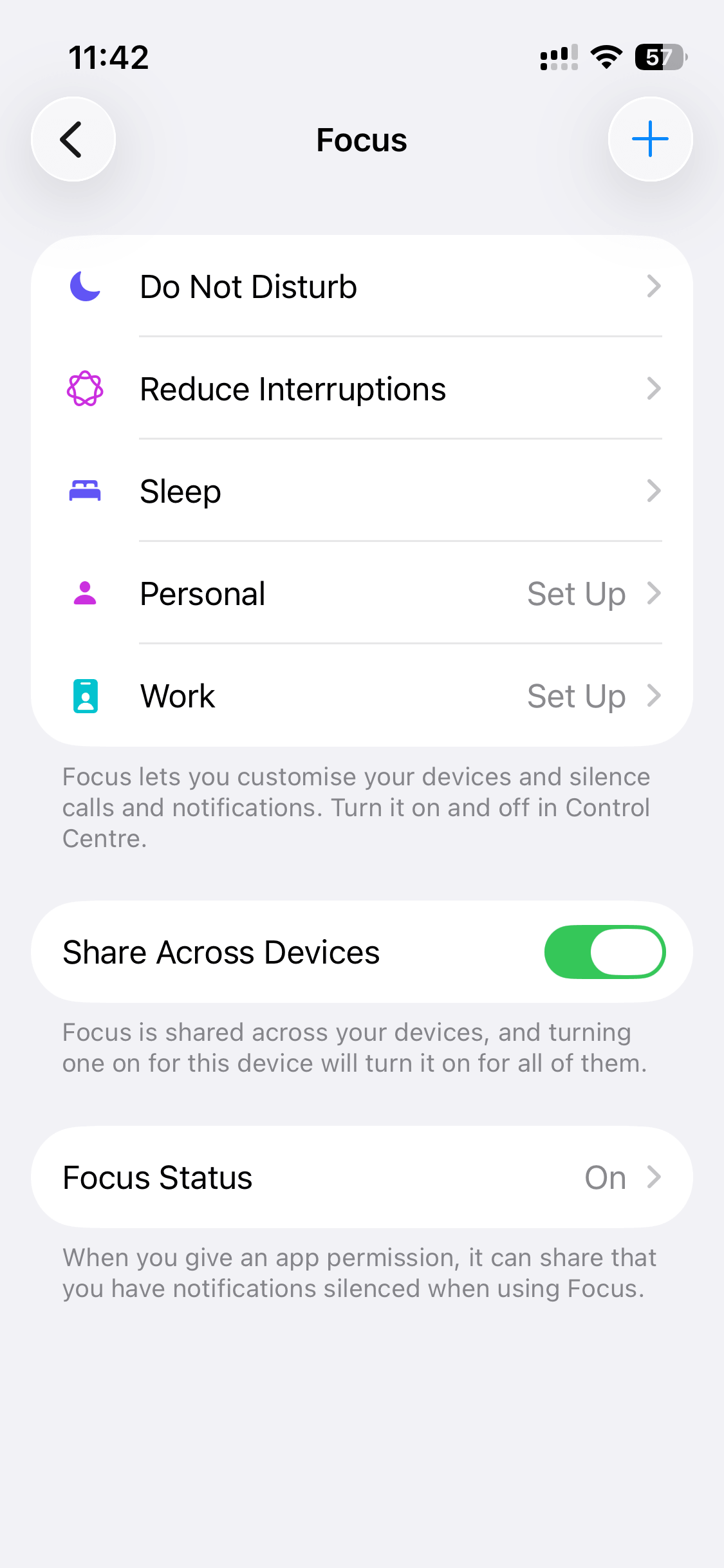
Click the + button at the top right, and select Driving to add a new focus mode. Then click the Customise Focus button.
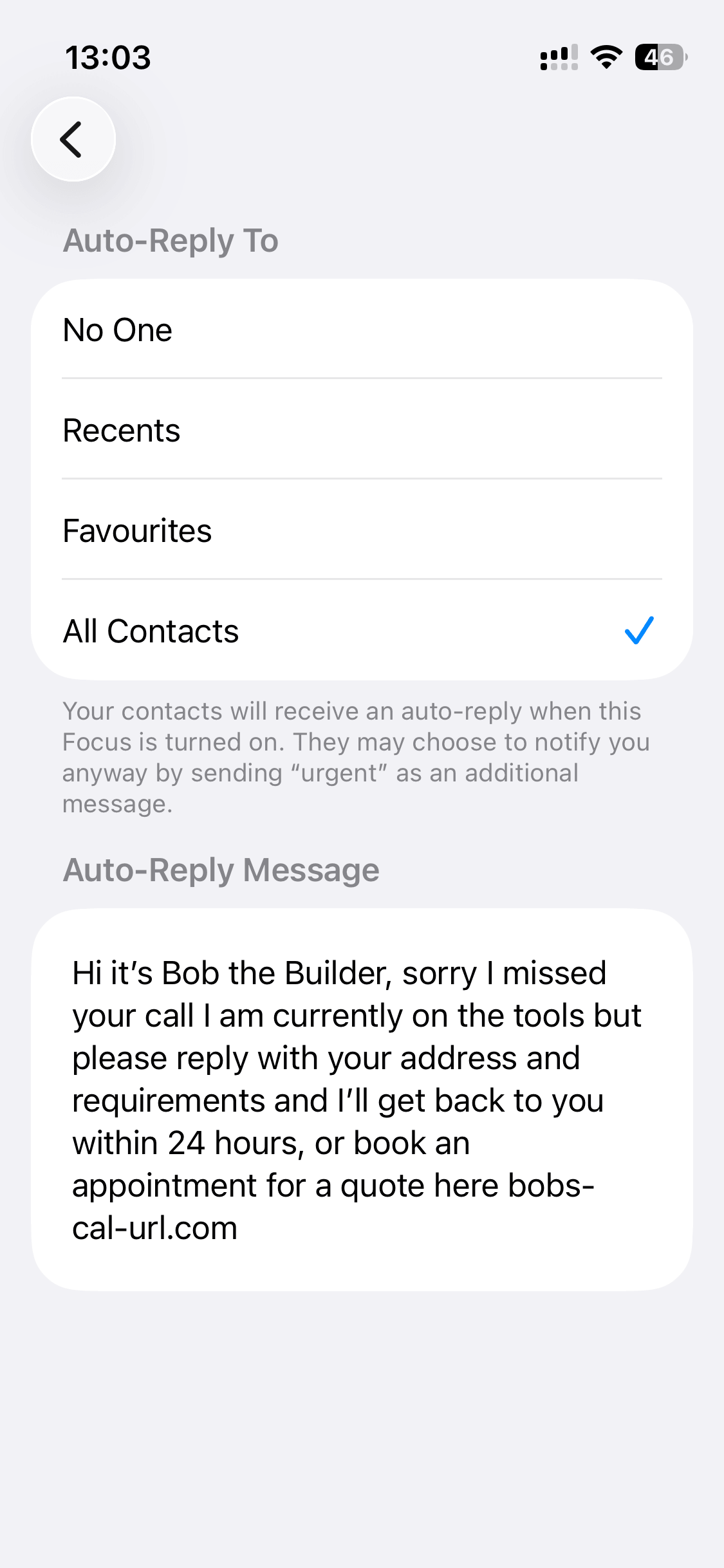
Then click Auto Reply, select All Contacts and add your message.
Under While Driving, set to Manually, so you can trigger this focus mode when you need it.
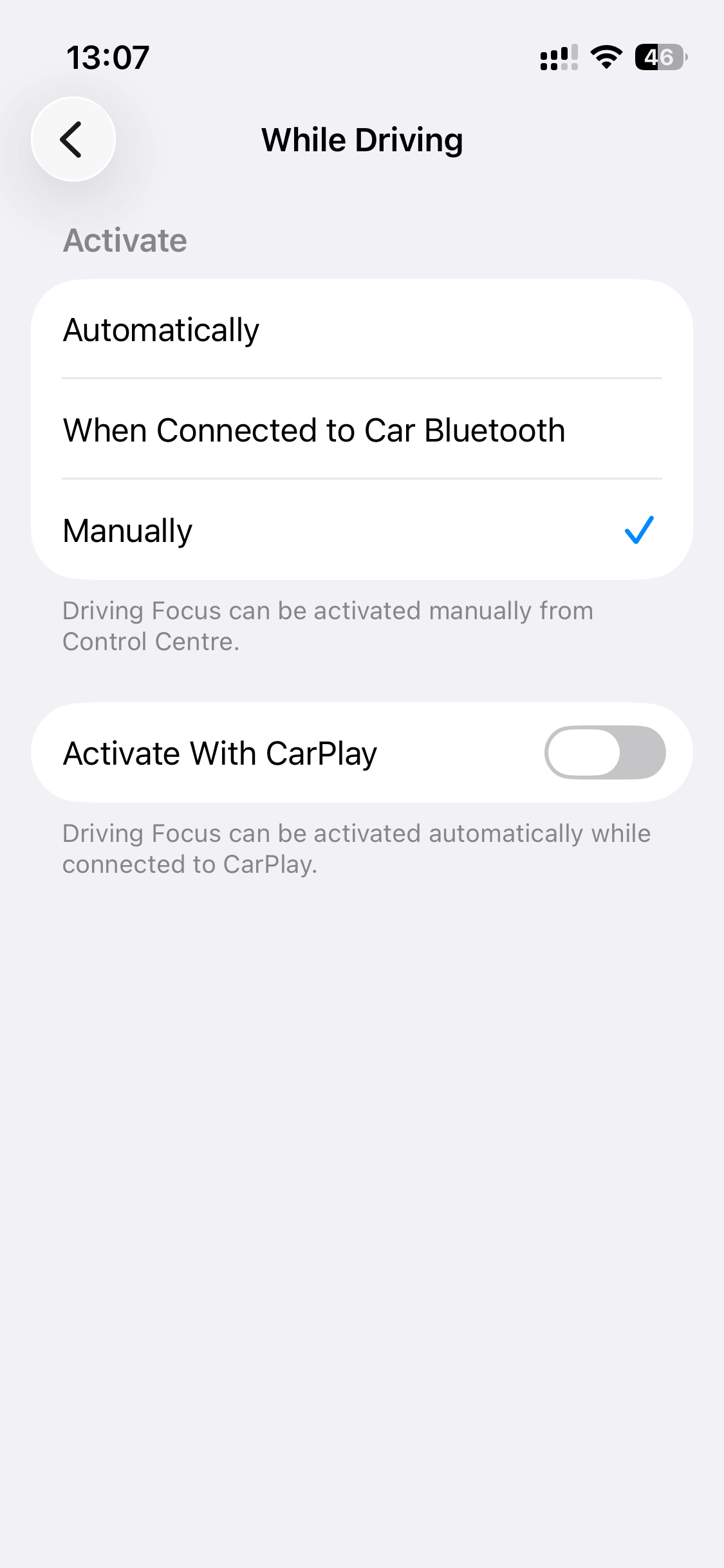
Remember, this will only work with existing contacts. So let's look at some other options for numbers you don't already know.
Workaround 2 - Respond with Text
This is a good workaround if you are likely to see calls coming in, but you can't answer them for whatever reason. For example, you have your phone with you, but you're working, or you can't answer calls to other clients while you are with a customer, or you don't have the time or headspace to take down the details.
The other good thing about this workaround is that you can use it to stop your phone ringing, rather than leaving the call to ring and ring, you respond with a text immediately.
The person calling you will probably even think it's automated. And while it isn't, it only takes one or two taps to send the message and get back to what you are doing.
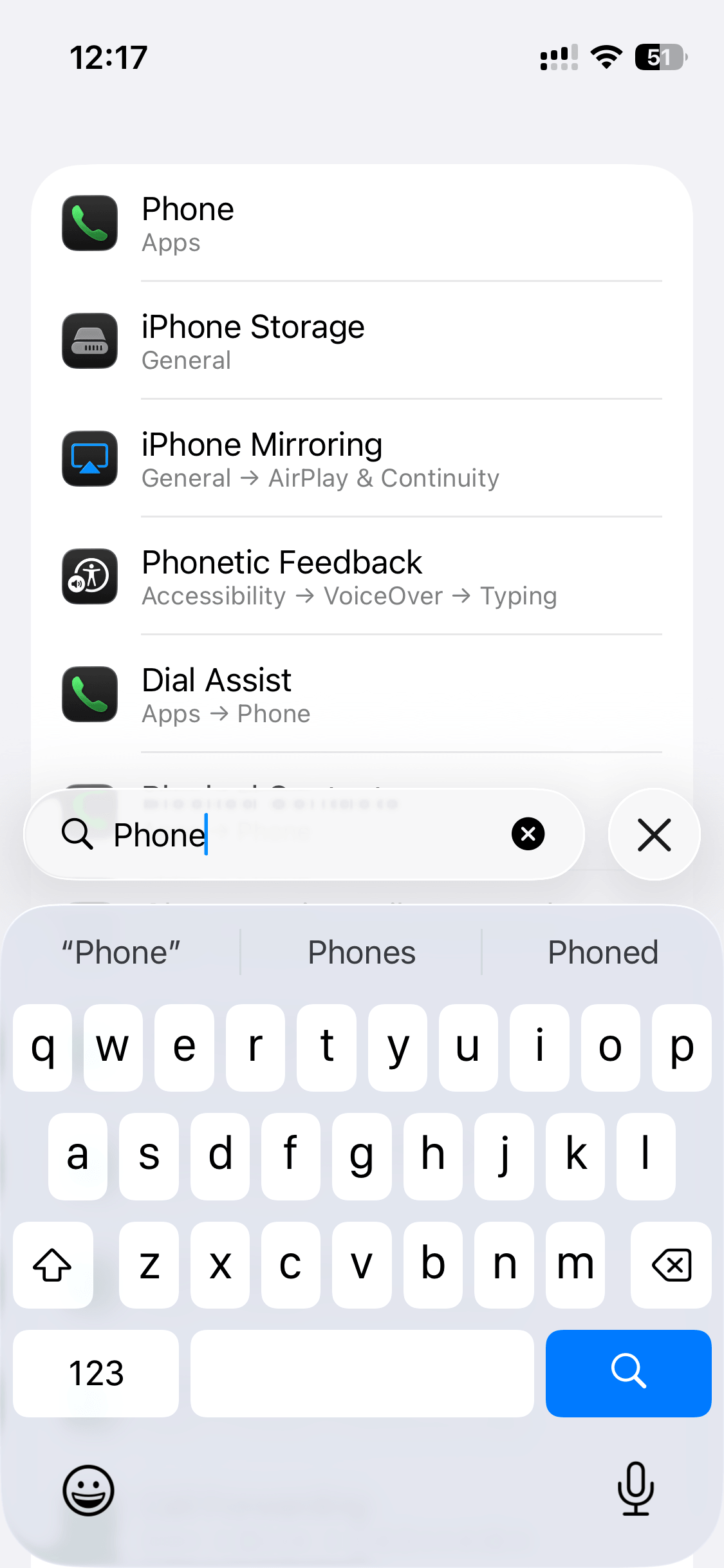
Settings > Apps > Phone (a quicker way to get to this is to type Phone in the settings search bar).
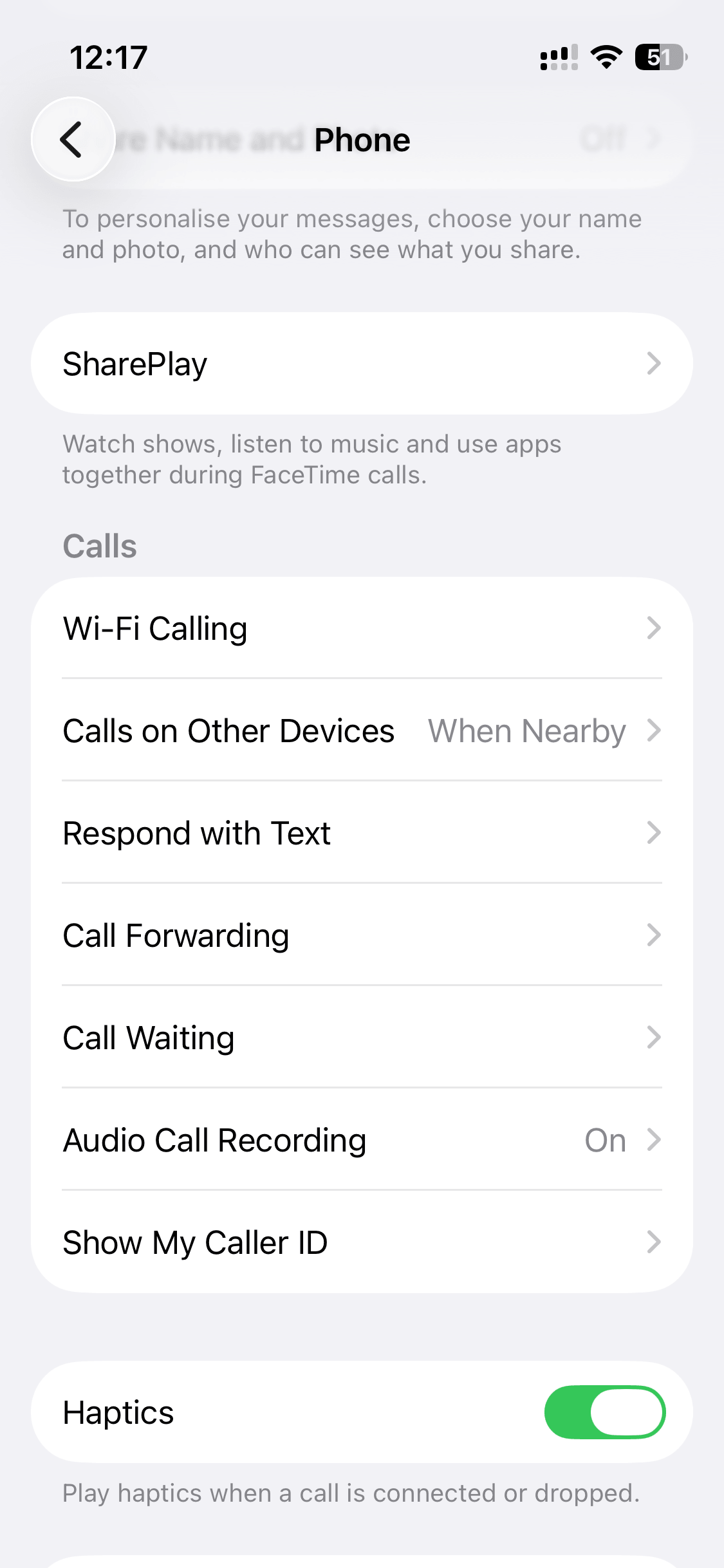
In the Phone settings, tap Respond with Text. Enter your message in one of the three "Respond with options".
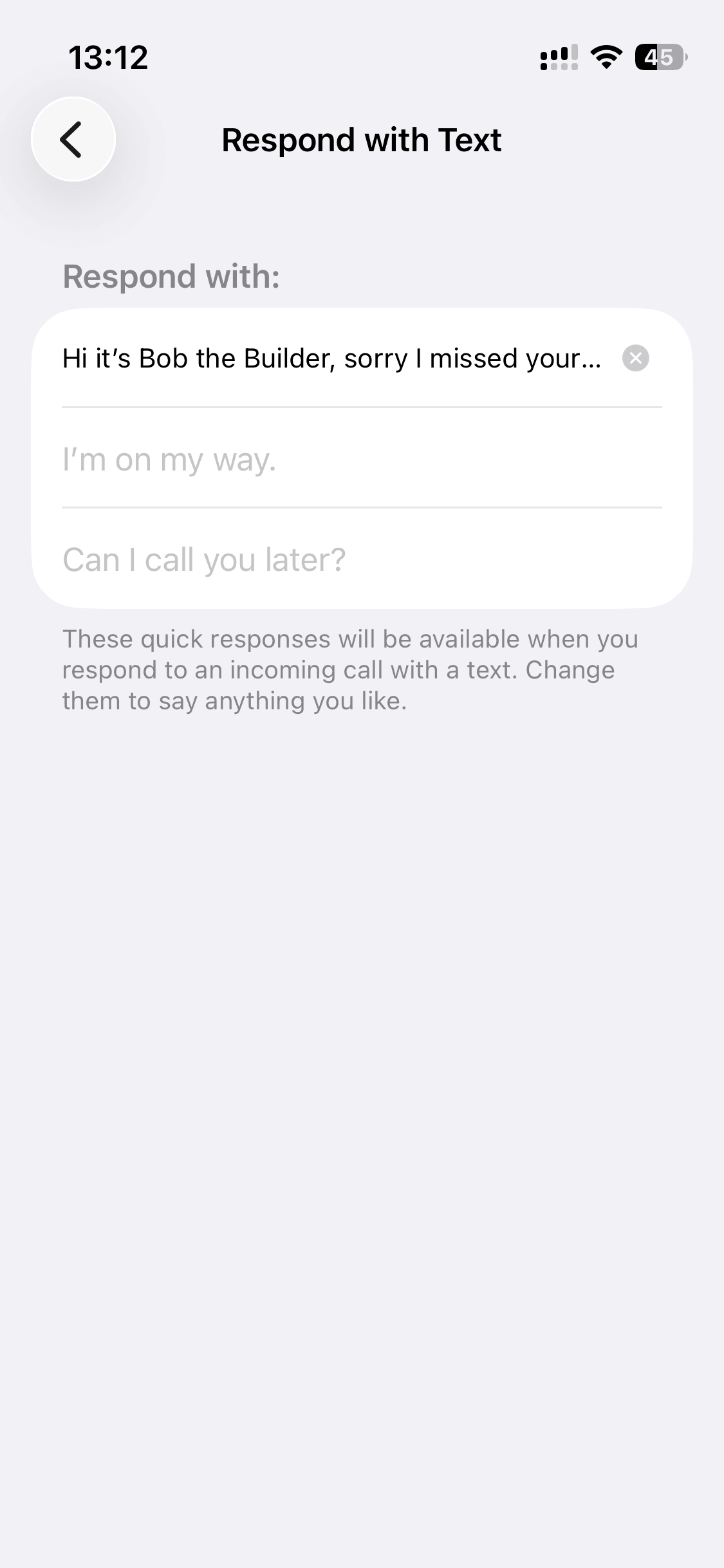
Now, when a call comes in, you can tap the message icon and select your response.
Workaround 3 - Saved Replies with Text Replacements
Out of the three workarounds, since automated message replies to missed calls are not yet a native feature on iPhones, this is my favourite.
I actually use this with Workaround 2 above, so if I genuinely miss the call, and I don't see it until it shows up as a missed call, I can still send the message as a type of saved reply.
And it's super quick.
Settings > General > Keyboard
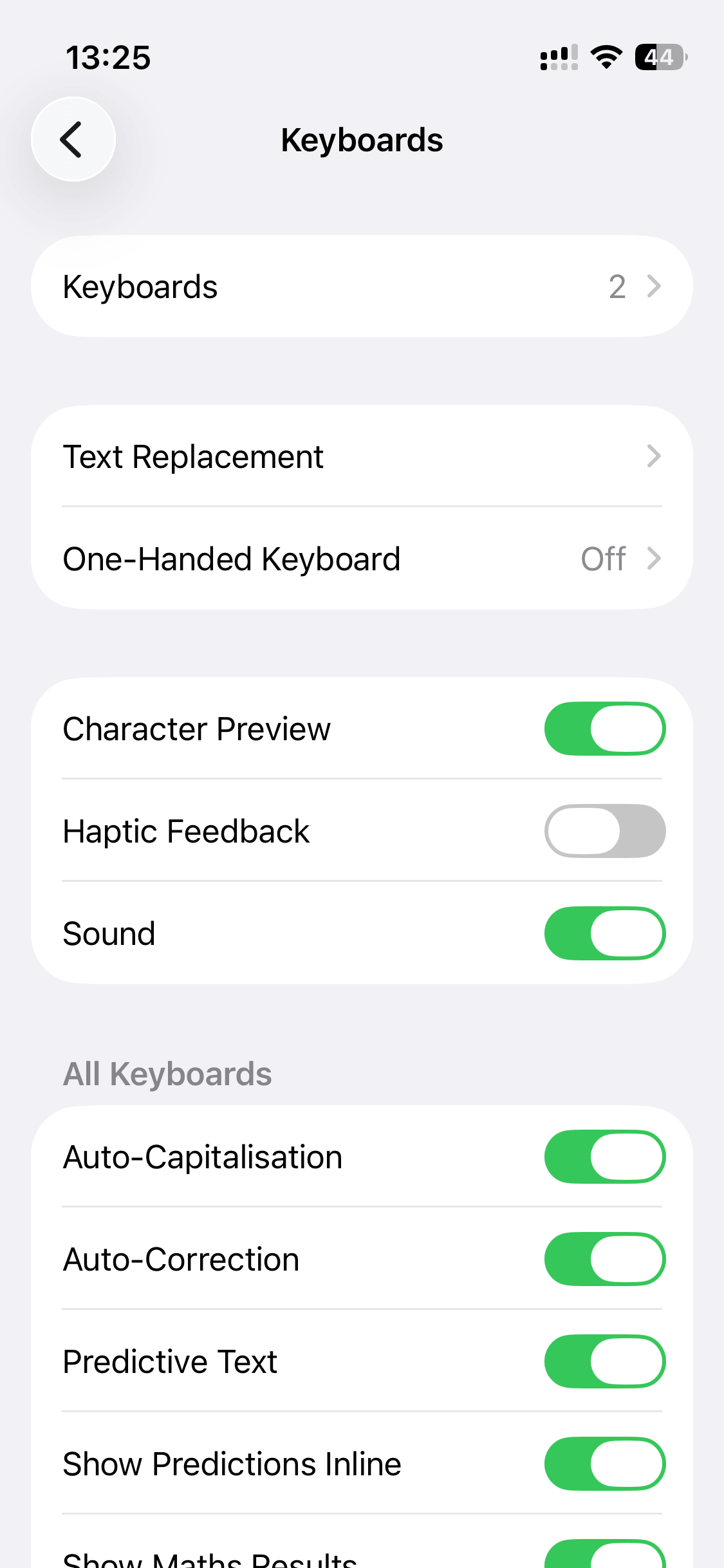
In the Keyboard settings, select Text Replacement.
Tap the + button in the top right to add a new item.
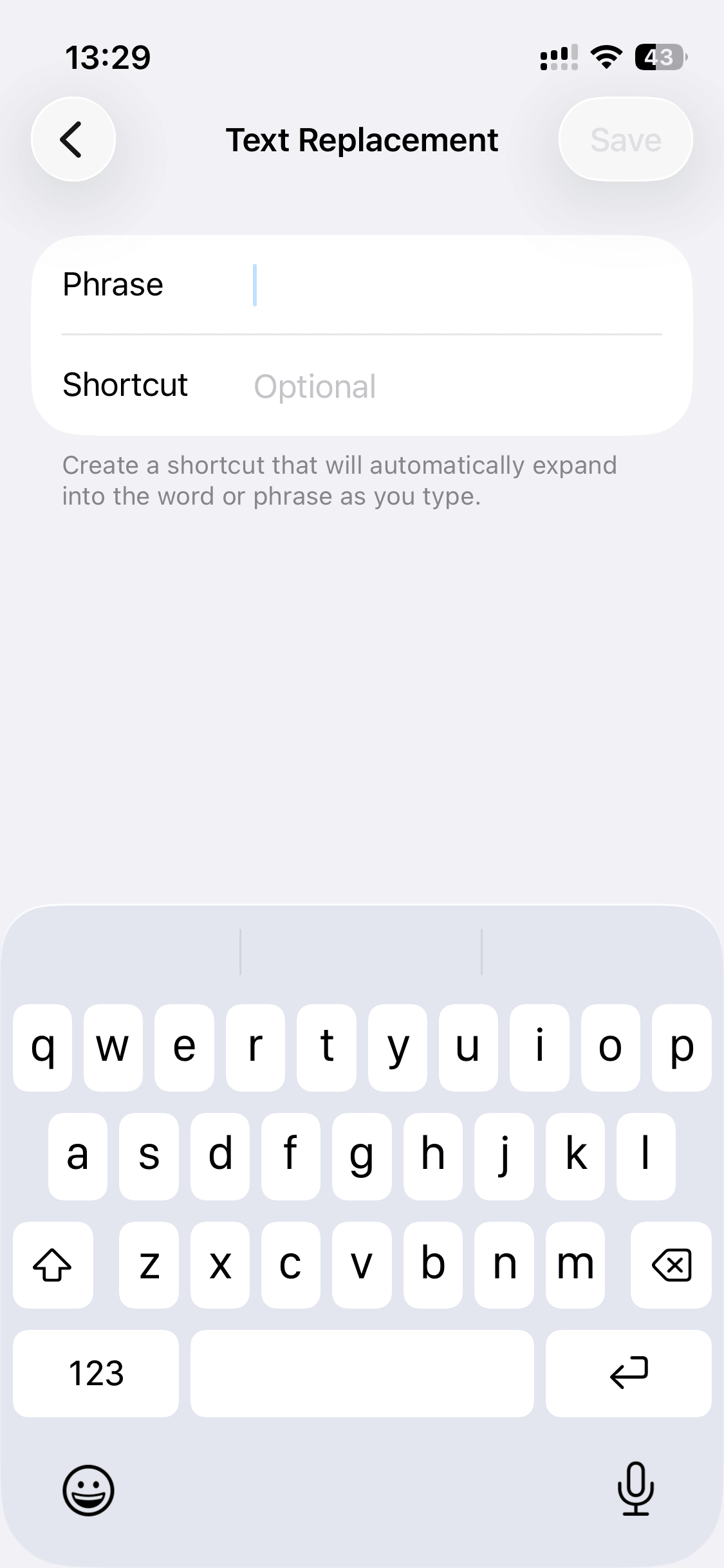
In the "Phrase" section, add your saved reply, and in the "Shortcut" section, add the text that will trigger the reply. For example, "!missed" or "mscl" - something you wouldn't normally type, but is quick and easy to remember.
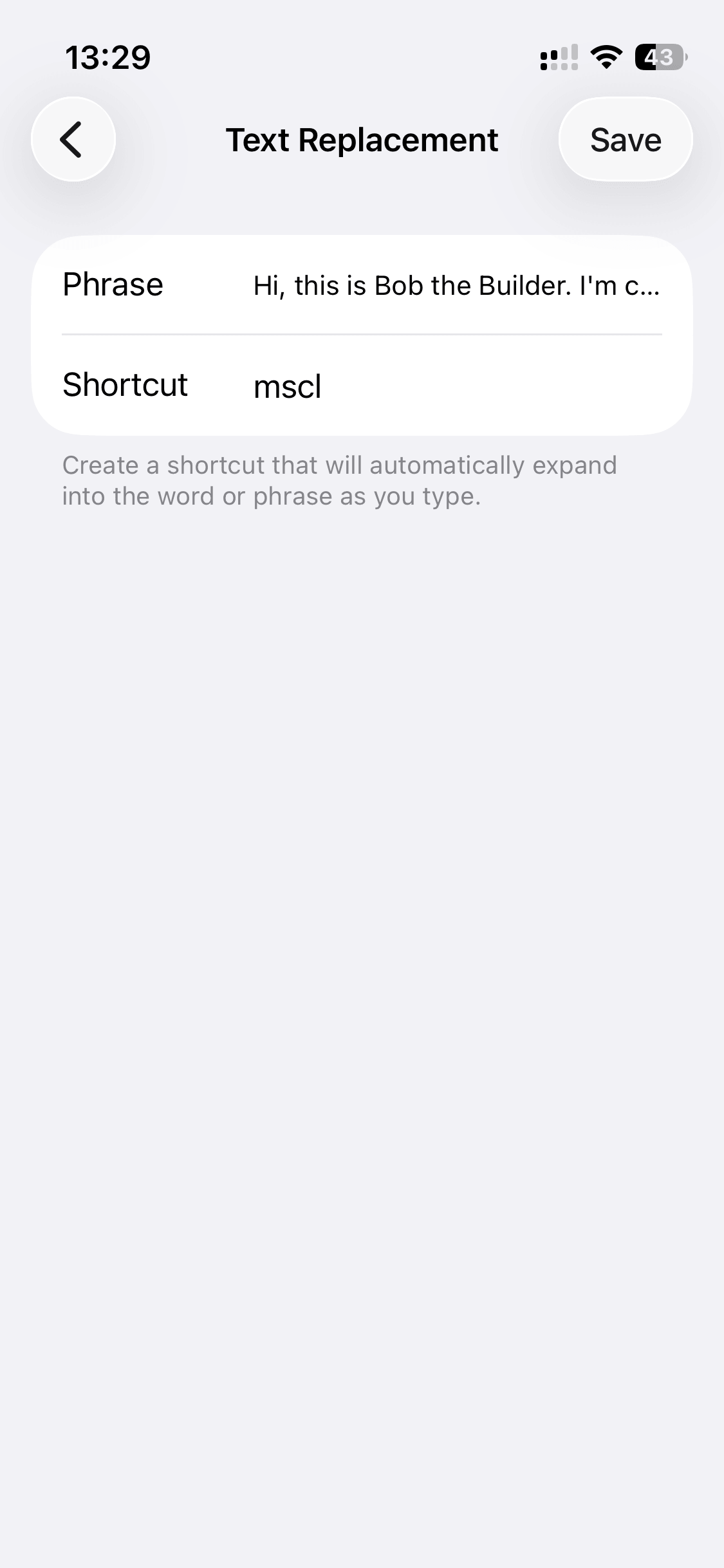
Now, when you have a missed call, you can tap the info icon or tap and hold the number in your missed call list, and select Message, in the message input, type your phrase, followed by a space, and like magic, your saved response will appear!
I am surprised this isn't something easier to do. You can reply with text in driving modes, so why not in other focus modes? And why can you only reply to contacts, and not all missed calls? I hope these features are added in future iOS updates.